
April 1, 2025
Text to Speech vs Screen Reader: What's the Difference?
People mix these up constantly. "I need a screen reader" — when they mean TTS. "I use TTS" — when they're actually describing screen reader behavior. The two technologies are related, overlap in some ways, and serve fundamentally different purposes.
Understanding the difference helps you pick the right tool for what you're actually trying to do.
What Is Text to Speech?
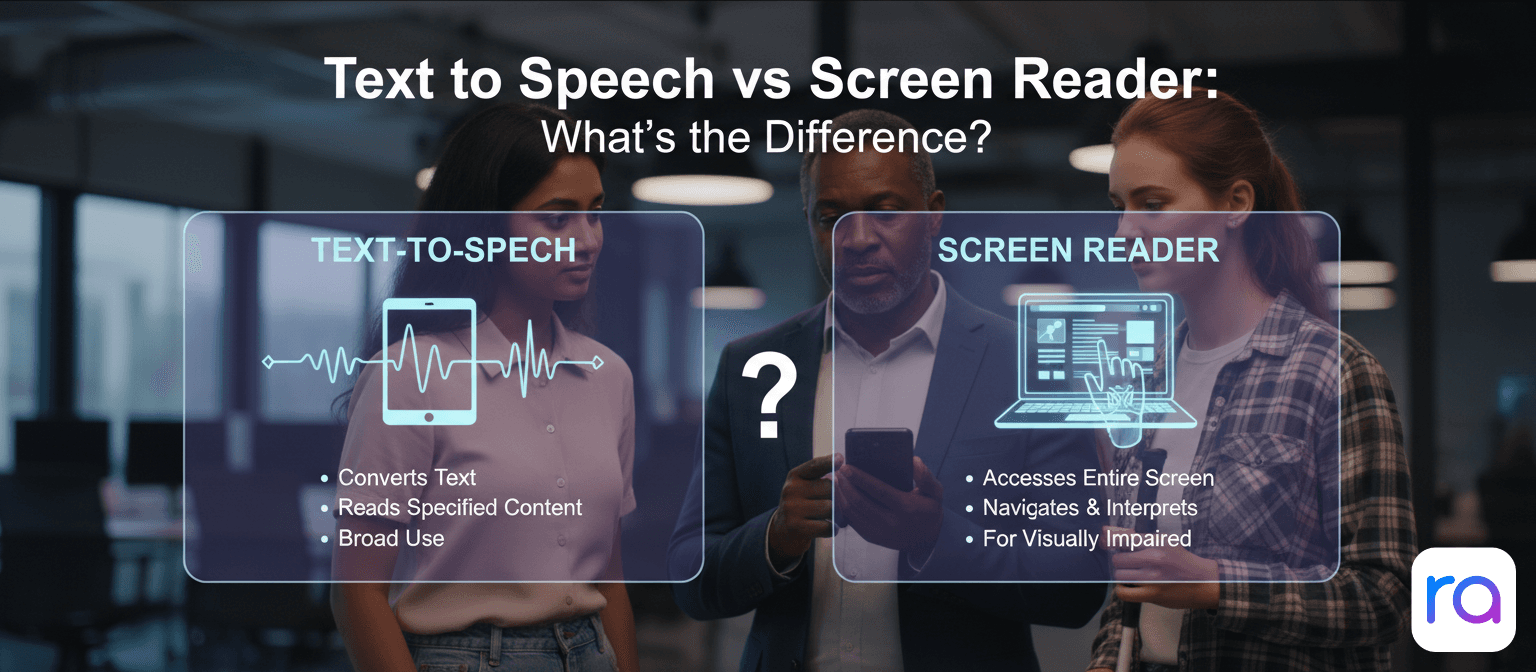
Text to speech converts written text into spoken audio. You give it text — paste it in, upload a file, or point it at a URL — and it reads that specific content out loud. That's it.
TTS tools like ReadAloud, Speechify, and NaturalReader are TTS tools. You use them to listen to documents, articles, PDFs, emails. They read the content you give them. They don't interact with your operating system or other applications.
Primary users: people with dyslexia, ADHD, low vision, or anyone who wants to consume text via audio for productivity reasons (commuting, multitasking). TTS is a choice-driven tool — you choose what it reads and when.
What Is a Screen Reader?
A screen reader is fundamentally different. It's an accessibility technology that translates the entire visual user interface of a computer into audio and, often, braille output. It reads everything — window titles, button labels, menu options, error messages, form fields, icons — not just document content.
Screen readers work at the operating system level. They intercept everything displayed on screen and narrate it. JAWS (Windows), NVDA (Windows, free), VoiceOver (macOS/iOS, built-in), and TalkBack (Android) are screen readers.
Primary users: people who are blind or have severe visual impairment. Screen readers enable complete computer use without vision — they're essential assistive technology, not optional productivity tools.
Key Differences
| Feature | Text to Speech | Screen Reader |
|---|---|---|
| Reads | Specific content you provide | Everything on screen |
| Scope | Content-level | System-level |
| Primary users | Dyslexia, ADHD, productivity | Blind / visually impaired |
| Interface interaction | No | Yes — navigates UI |
| Typical cost | Free to moderate | Free (VoiceOver, NVDA) to expensive (JAWS: $1000+) |
| Setup complexity | Low — paste and play | High — requires training to use effectively |
| Examples | ReadAloud, Speechify, NaturalReader | JAWS, NVDA, VoiceOver, TalkBack |
Where They Overlap
The technologies share the same core function — converting text to audio — and they overlap in some situations. VoiceOver and TalkBack can read documents and articles, functioning like TTS for specific content. Some TTS tools have system-wide extensions (Speechify's Chrome extension, for example) that approach screen reader-like behavior for web content.
Apple's Speak Screen feature on iOS reads everything on screen and sits somewhere between the two categories — it's broader than typical TTS but less comprehensive than a full screen reader.
For low vision users who can see partially, TTS tools often work better than screen readers because they're less overwhelming — they read what you want, not everything.
Which One Do You Need?
Use TTS if: You want to listen to specific documents, articles, or content. You can see and navigate your computer normally. You want TTS for reading productivity, learning, dyslexia support, or ADHD accommodation.
Use a screen reader if: You're blind or have severe visual impairment. You need to navigate a computer entirely via audio. You use braille display output. TTS tools alone don't provide enough interface narration for your needs.
For the vast majority of people who search for "text to speech" — you want TTS. Starting with ReadAloud (free, no account) is the fastest path to trying it.
Common Screen Readers Worth Knowing
NVDA (Windows) — Free
Non-Visual Desktop Access. The most widely used free screen reader for Windows. Open-source, actively maintained, works with most applications. The go-to for blind Windows users who don't have or want JAWS.
JAWS (Windows) — Commercial
Job Access With Speech. The most feature-rich Windows screen reader, widely used in professional and enterprise contexts. Expensive ($1,000+ for a permanent license) and requires learning. Used when NVDA isn't sufficient for specific workflows.
VoiceOver (macOS/iOS) — Free
Built into all Apple devices. The only screen reader option for iOS. High quality, well-integrated with Apple's ecosystem. Free with any Apple device.
TalkBack (Android) — Free
Google's screen reader for Android. Built into Android and free. The primary accessibility option for blind Android users.
Can TTS and Screen Readers Work Together?
Yes — and some users do combine them. A low vision user might use a screen reader for navigating their computer but switch to a dedicated TTS tool like ReadAloud for reading long documents, because the TTS tool offers better voice quality and more control over how content is read.
The tools serve different roles and don't conflict. You can run both simultaneously.
Need TTS for Reading? Start Here — Free
No account, no download. Paste text and listen in 30 seconds.
Try ReadAloud →FAQ
Is a screen reader the same as TTS?
No. Screen readers narrate entire computer interfaces. TTS reads specific content you provide. They use similar underlying technology but serve different purposes for different users.
Can I use TTS without a screen reader?
Yes — most TTS users don't use screen readers at all. They're separate tools.
Which is better for dyslexia — TTS or a screen reader?
TTS. Dedicated TTS tools like ReadAloud are simpler to use, have better voice quality for content reading, and are designed for reading productivity. Screen readers are designed for visual impairment accessibility, not reading support.
Is NVDA good for listening to documents?
It works, but dedicated TTS tools are better for this purpose. NVDA reads everything on screen as you navigate — it's not optimized for reading a document from start to finish the way a TTS tool is.